
Introducing SonicWall VPN Reports and VPN Dashboard
We've made some additions to Fastvue Reporter for SonicWall to provide better visibility into SonicWall's VPN connections. Monitor the number of active sessions, find who has not connected recently, when most people connect and disconnect, and proactively respond to unexpected disconnections or invalid login attempts.
 Scott Glew
With everyone shifting to working from home due to COVID-19, reporting on SonicWall's VPN activity is top of mind for many overstretched IT teams right now.
To help, we've made some additions to Fastvue Reporter for SonicWall to provide better visibility into SonicWall's VPN connections and to ensure your remote infrastructure is holding up.
In addition to reporting on VPN activity from SonicWall firewalls, we've also added support for SonicWall's Secure Mobile Access (SMA) devices. Just send the SMA device's syslog data to the Fastvue Reporter for SonicWall server to enjoy these new features:
SonicWall VPN Dashboard
First of all, we've added a new VPN Dashboard that lets you monitor SonicWall's VPN activity in real-time.
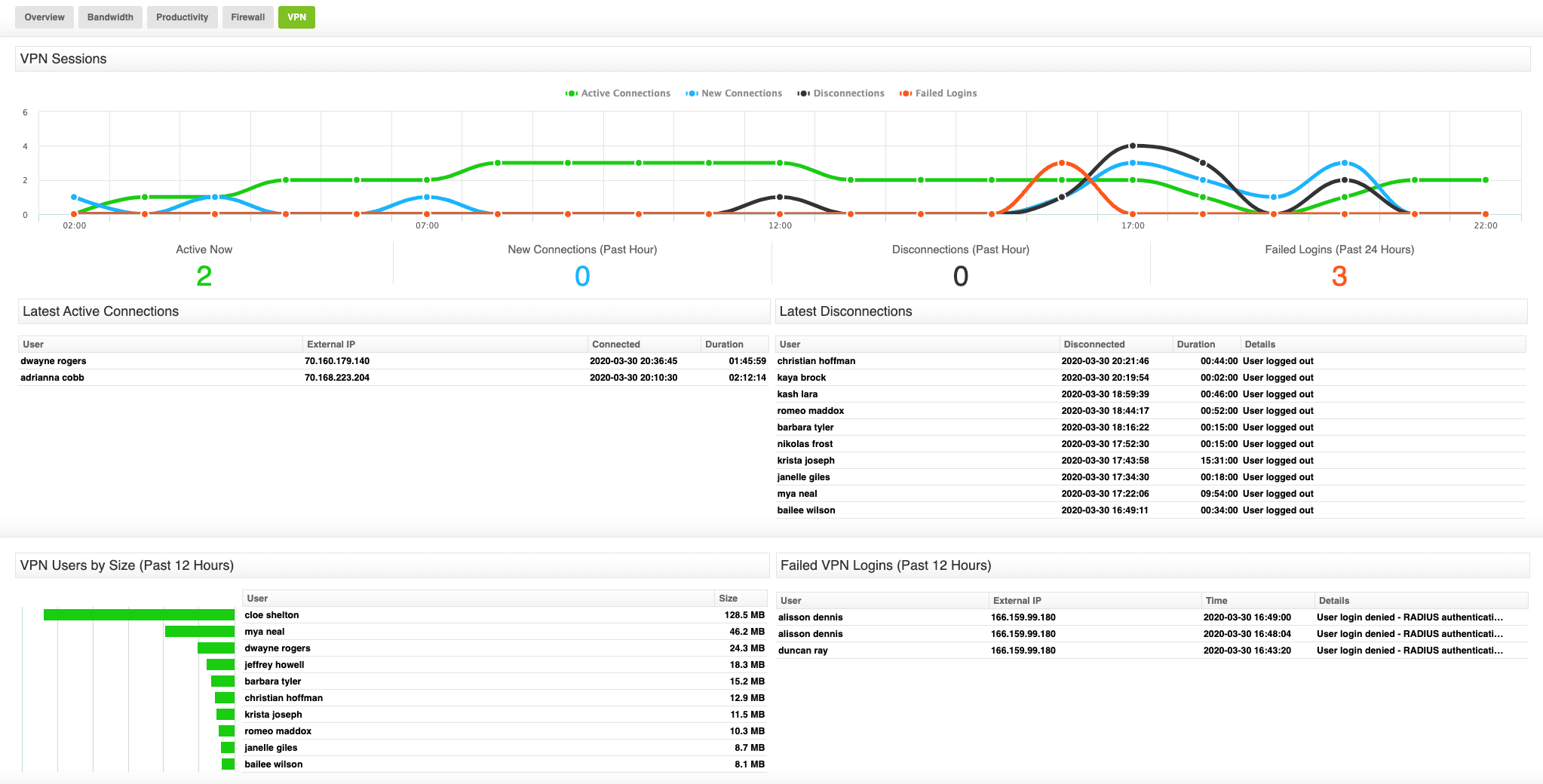
The line chart at the top shows the number of Active VPN Sessions over time as well as the number of New Connections, Disconnections, as well as the number of Failed Logins.

Underneath the line chart are some clear statistics showing the number of Active Connections now, the number of New Connections and Disconnections over the past hour, as well as the number of Failed logins over the past 24 hours.

Underneath the statistics, we have two tables showing the most recent VPN connections and the most recent VPN disconnections. The disconnections table also shows the SonicWall event message that indicates the reason for the disconnection. This lets you see if the VPN connection was terminated due to an auto-logout, a normal user logout, or any other reason.

The final row of the VPN dashboard shows the Top VPN Users by size, as well as a table showing the most recent Failed VPN logins.

SonicWall VPN Reports
We've also added a new VPN section to the existing IT and Network Security Reports. To access the new SonicWall VPN report:
- Go to Reports | Overview Report | IT and Network Security.
- Select your date range and click Run Report.
- Scroll down to the VPN section
Note: If you only want to see the VPN activity for a certain user, you can also select a User Overview Report | IT and Network Security Report, then select the user, date range, and click Run Report.
The VPN report section is also availabe in the All Usage reports.
The VPN section starts with the same line chart showing Active Connections, New Connections, Disconnections and Failed Logins over time.
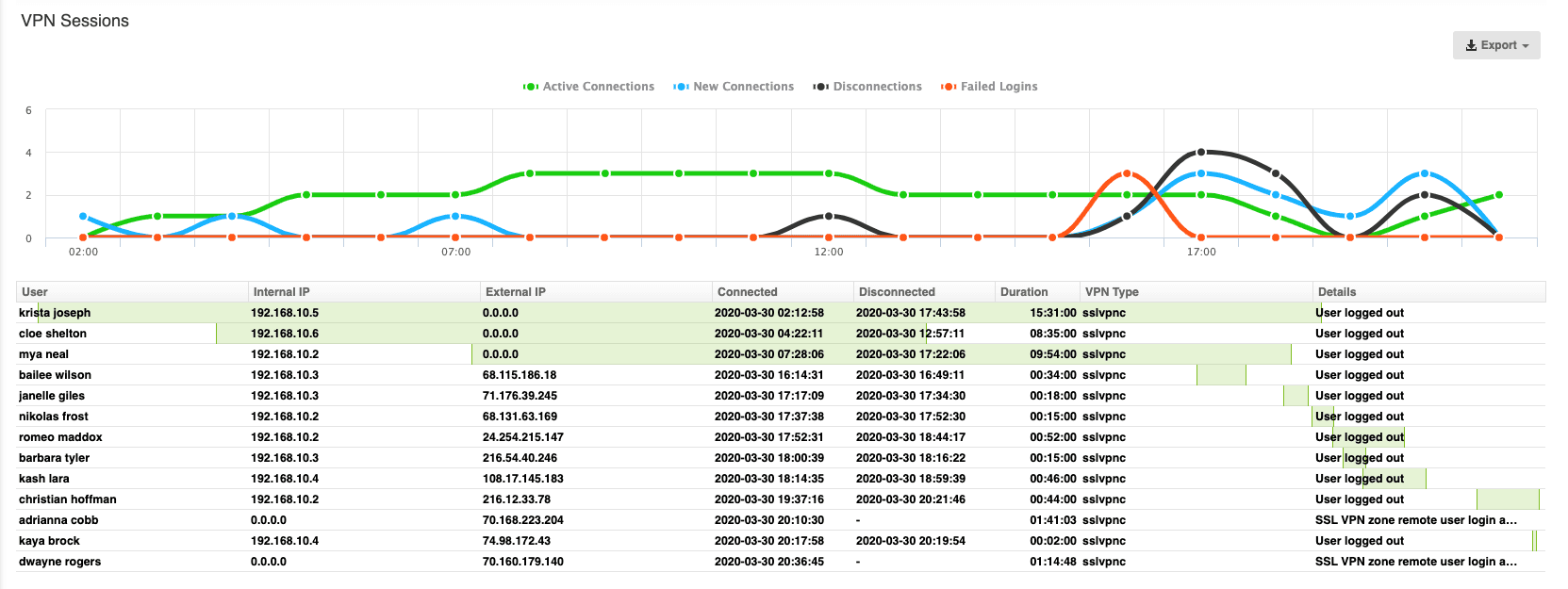
It's important to note that this will show connections that started after the report's start date. So if you run a report on today, it will show connections that started from midnight today. It will not show connections that were started yesterday, even if they are still active today.
The VPN section also shows a table that lists all VPN connections, including the user, internal and external IPs, connection and disconnection times, VPN duration, VPN session type, and a column called details that displays the SonicWall event message. The details column usually states the reason for the VPN's disconnection, but for VPN sessions that were not disconnected within the report's time range, it will show the SonicWall Event Message for the connection start event, such as 'SSL VPN zone remote user login allowed'.
The green bars in the table give you a visual indication of when a VPN connection started and stopped, relative to other connections.
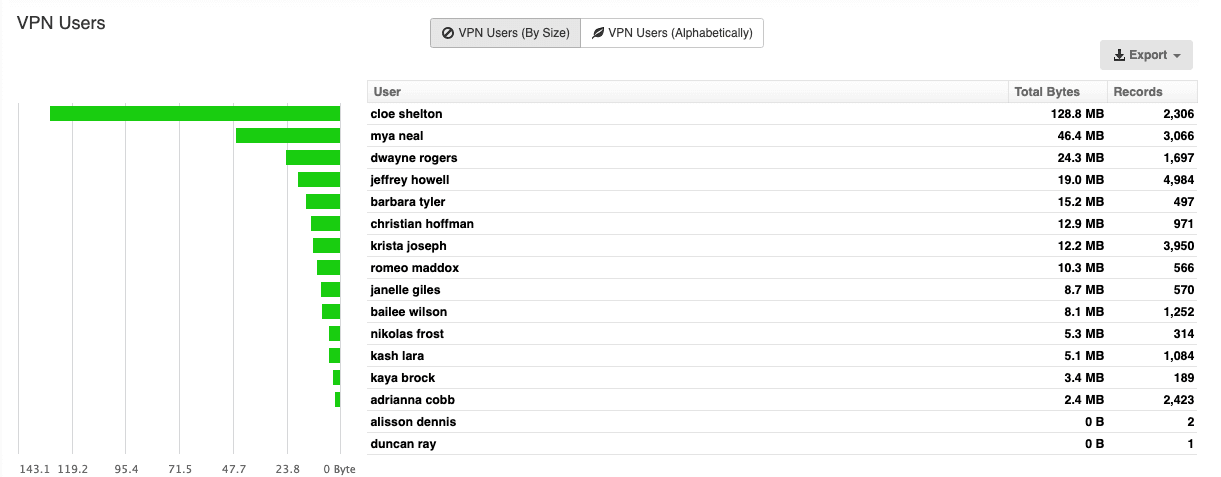
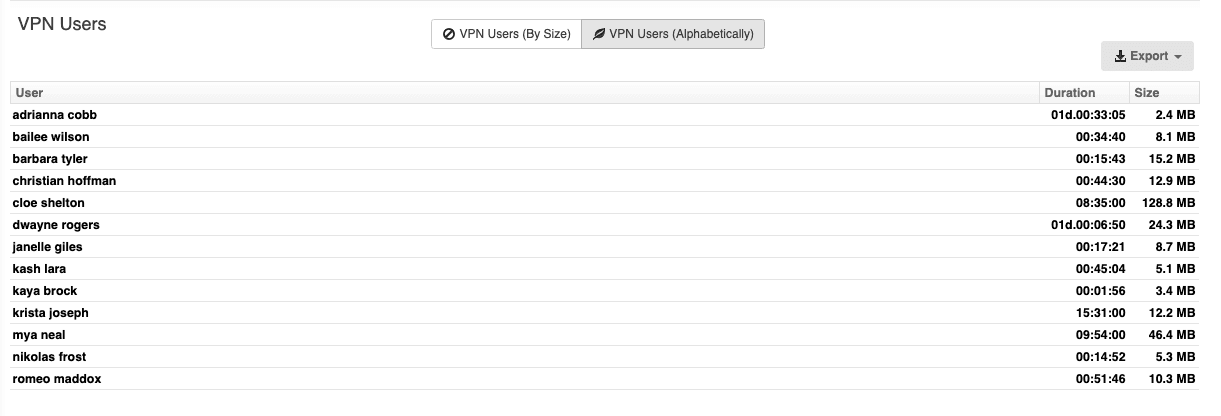
Like the VPN dashboard, the VPN report section also shows Top VPN Users by Size, but also includes a simple list of VPN Users alphabetically. This makes it easy for managers and IT administrators to easily find how long a specific user was logged in for, and how much traffic they consumed over the VPN connection.
The report also includes Failed Logins showing the Username, Message and Source IP as it does on the VPN Dashboard, but the report also includes the Destination IP (the SonicWall's IP), which is handy if you have multiple SonicWall devices being monitored by Fastvue Reporter, and you need to know which one is receiving a high number of failed login attempts.

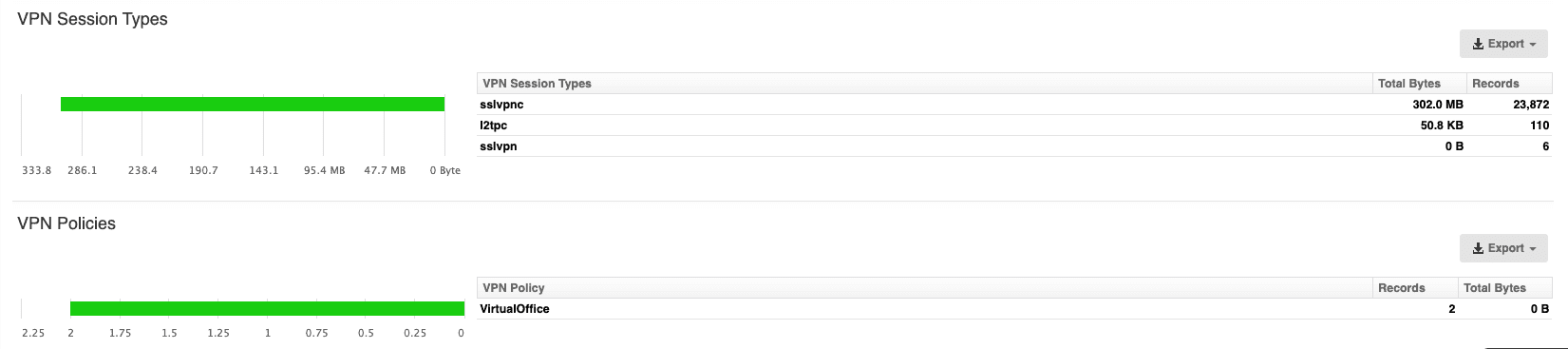
Unlike the VPN Dashboard, the VPN section in the report also shows VPN Session Types, such as SSL VPN, IPSec or L2TP, as well as VPN Policies. If you want to view the VPNs that relate to a specific VPN Policy, you can hover over a VPN Policy, then over the green arrow, and run another IT and Network Security report.
If you want to receive these reports every day, week or month, just click the Schedule Report button in the top right corner.
SonicWall VPN Alerts
In addition to the VPN Dashboard and VPN Reports mentioned above, it is also possible to create real-time alerts when users login to the VPN, or disconnect. You can receive these alerts directly in your email inbox. I've created a quick video to show you how:
Does it support SonicWall SMA (Secure Mobile Access)?
Yes! VPN Reporting for SonicWall would not be complete if we didn't support SonicWall SMA in addition to SonicWall Firewalls. On your SMA, simply go to Log | Settings and enter the Fastvue server as a syslog server.
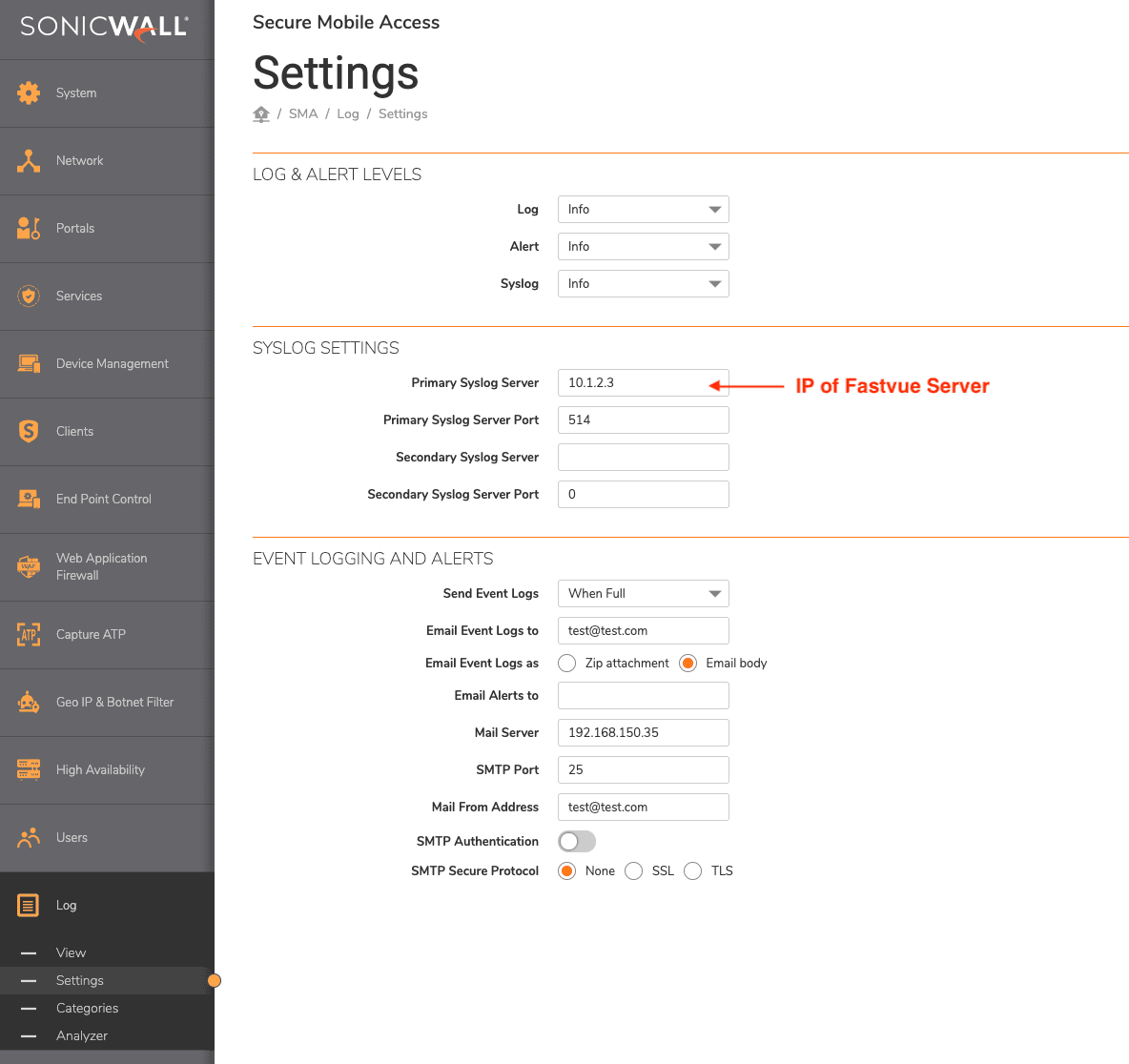
Then in Fastvue Reporter for SonicWall go to Settings | Sources | Add Source and you should see your SMA appear in the dropdown list. Select it to add it as a monitored device.
Note: Fastvue Reporter for SonicWall is licensed based on the number of SonicWall devices you need to monitor. Monitoring an SMA device in additon to a SonicWall Firewall will require at minimum the Medium license.
Try Fastvue's SonicWall VPN Reports now!
Download and install the latest version of Fastvue Reporter for SonicWall to access these new features.
If you're new to Fastvue Reporter for SonicWall, it comes with a free 14-day trial. See our Getting Started Guide for recommended system requirements, simple installation instructions and information on sending log data from your SonicWall.
If you're upgrading an existing v2.0 installation (see Settings | About), simply download and run the new installer over the top of your existing installation. The installer will pick up your existing settings, so just click next throughout the wizard without making any changes. Once installed, browse to the site and clear the browser cache by hitting ctrl + F5 (cmd + R on Mac).
If you're upgrading from v1.0, please see the Upgrade section on our Getting Started page.
Note that it can take a few minutes for data to start importing again after upgrades and restarts of the Fastvue Reporter service. You can check the database initialisation progress in Settings | Diagnostic | Database.
It's also important to note that you will not see the VPN dashboard populate immediately. This will start populating as soon as new VPN connections are started.
Enjoy!
With Fastvue Reporter for SonicWall's new VPN Dashboard and VPN section in the IT and Network Security report, you can monitor the number of active sessions throughout the day to help plan for extra capacity, or use the reports to find who has not connected recently.
You can also easily see when most people connect and disconnect, and proactively respond to unexpected disconnections or excessive invalid login attempts.
What do you think of our new VPN Dashboard and VPN report section? Let us know if we're missing anything in the comments.
13 Comments
Archived from our previous comment system.
- Arjun
Hi Scott, Great Video.
Is there a way to have the same information as a report including user login event, user, Source IP destination IP. Capture say over a day period and email.
- Scott Glew
Hey Arjun,
Thanks! Yes. Just schedule the IT and Network Security report each day.
1. Go to Reports | Overview Report | IT and Network Security
2. Click Schedule Report
3. Select 'Daily' as the schedule and enter the email addresses of the people that need to receive the report.You can choose to receive it as a link back to the app, or as a PDF or CSV. Unfortunately, you can't choose 'just' the VPN section though. That's part of a larger feature on our roadmap.
- Kumar Jyoti
Hi,
This is really a good tool for Sonicwall's real-time analysis. I am testing this and start loving the tool. I have some issues:-
A. VPN data is not coming? Do you have any set of documentation regarding this?
B. Reports authentication is not working properlyThanks
Kumar- Scott Glew
Hey Kumar,
It can take a little while for the VPN dashboard to start populating as we need to see the VPN 'start' event, so it may actually take a couple of days to fully sync up with the number of Active Connections you see on your SonicWall. We have an article on how to setup authentication on the Fastvue Reporter website here: https://kb.fastvue.co/sonic...
Hope this helps!
- Paul D
Hi Scott,
We use the One Time Password feature on our SMA when users connect to the VPN. When the OTP is sent, this gets logged under the Failed VPN Logins section of the dashboard as User login awaiting OTP. Is there a way to exclude these events from the dashboard as they aren't really a failed login?
Thanks,
Paul- Scott Glew
Hey Paul
Thanks for letting us know about this. If you're able to send us a log sample with some of these OTP events, we can exclude them from the failed login section.
To do this:
1. Go to Settings | Diagnostic and note the location of the Diagnostic Log files
2. Set to the logging level to 'Full' (slider all the way to the right)
3. Let the software run for an hour or so and make sure there are some OTP events triggered during this time (depending on the frequency of this, you may need to let it run for a full day or so)
4. Zip and upload the latest Diagnostic log file to http://www.fastvue.co/upload with a short description of the problem.We'll then investigate and get back to you asap.
But in the meantime, you can filter these events out of your reports (dashboard cannot be filtered at this time though). To do this:
1. Go to Reports | Overview Report | IT and Network Security
2. Click the Filters button and enter the filter:
Event Message 'Does not contain' awaiting OTP (or whatever string is shown in the Failed Login section)
3. Optional: Click the Save Filter button (next to Add Filter) and save it as 'Excluded OTP Events'. You can then use the Load Filter button (next to Save Filter) to load this filter when running future reports
4. Select your desired date range and click Run Report (or Schedule Report)I hope this helps. Let me know how you go!
- Jeff
Hi Scott
After updating in VPN Sessions on data to display only in VPN Users by Size (Past 12 Hours) the connected users appear, there is some more configuration to be done
- Scott Glew
Hey Jeff
How long has it been importing data for now? To show the latest connections, we need to see the 'VPN start' event, so it can take a while to sync up with the active connections you see in your SonicWall. The VPN Users by Size section is built using the stream of traffic events that occur in between start and end events, so that section will populate immediately, but we can't use the traffic events to show a connection start or end time.
Make sure you're sending the VPN events to syslog in Log Settings | Base Setup.
If you're still not seeing any VPN connections after a day or so, please contact us at support@fastvue.co. If you can capture some 'full' diagnostic logs too that would be great.
To do this:
1. Go to Settings | Diagnostic and note the location of the Diagnostic Log files
2. Set to the logging level to 'Full' (slider all the way to the right)
4. Let the software run for a few hours and make sure there are some VPN connections and Disconnections during this time.
3. Zip and upload the latest Diagnostic log file to http://www.fastvue.co/upload
- Calvin W
Your video is great to create alerts based off VPN logins on the SonicWall. Can we also create alerts based off logins using an SMA appliance?
Thanks
- Scott Glew
Hey Calvin,
Yes you can create alerts for the SMA as well.
The criteria for VPN start events would be:
Message ID 'Equal to' 1
AND
Event Message 'Does not contain' FailedThe Criteria for the VPN end events would be:
Message ID 'Equal to' 2
AND
Event Message 'Contains' Logged OutHope this helps! Let me know how it goes.
- Vyctor
In the VPN reporting settings for Sonicwall, is it possible to monitor the access of users who are connected via the global vpn client and not with SSL VPN?
- Scott Glew
Hey Vyctor. Yes, our reports will show VPN connections from global VPN clients as well as SSL VPNs.
- Fred Barrett
Hi Scott,
We are planning to upgrading our Sonicwall and don't know the extent of the remote Windows 7 PCs that will be unable to connect. Is there any log information that identifies the OS for the connecting machine?
Thanks,
Fred