
How to Use Sophos UTM Uplink Balancing to Achieve ISP Redundancy
Let's step through the basics of configuring ISP redundancy / uplink balancing on Sophos UTM, and then dive into more detail to cover typical deployments.
 Etienne Liebetrau
Providing Internet access to your company’s users is no longer just a nice to have. The modern cloud-enabled world means that we need to be connected to use the systems that drive our businesses. Continuous Internet access is not just important - it is now critical.
Using more than one Internet Service Provider (ISP) is a key metric when it comes to Business Continuity Planning and Disaster Recovery. No matter how good an ISP claims to be, they can all suffer from outages. If you have a backup ISP that uses significantly different infrastructure, you can protect yourself from Internet blackout. Significantly different in this context implies the connection medium, say Metro-Fibre compared to Satellite or 3G or multiple cheap consumer grade ADSL connections.
Sophos UTM has the capability of seamlessly providing ISP redundancy. The term it uses for this functionality is Uplink balancing.
Implementing ISP Redundancy with Sophos UTM
Like most other features of the UTM, uplink balancing is simple and easy configure, but also allows granular control over the settings should you wish to tweak them.
In this article, I will step through the basics of configuring ISP redundancy / uplink balancing on Sophos UTM, and then dive into more detail to cover typical deployments.
The first thing you will need is a second Internet connection. This would typically be a secondary Internet router such as a second DSL line that you can patch into one of the UTM's physical interfaces.
Configuring Uplink Balancing
- Connect your second Internet connection to your Sophos UTM on an unused interface
- Open Interfaces and Routing | Interfaces | + New Interface
- Specify a name
- Type : Ethernet
- Hardware : The interface you connected to
- Static or Dynamic IP
- Check the box for IPv4 Default GW

The IPv4 Default GW setting is very important. Specifying multiple connections as a default gateway enables uplink balancing. This is exactly what we want, so go ahead and confirm with OK
- The link will be created but will be turned off by default.
- Locate your new interface and turn it on with the toggle switch
- Wait a minute for it to initialize and you are done!
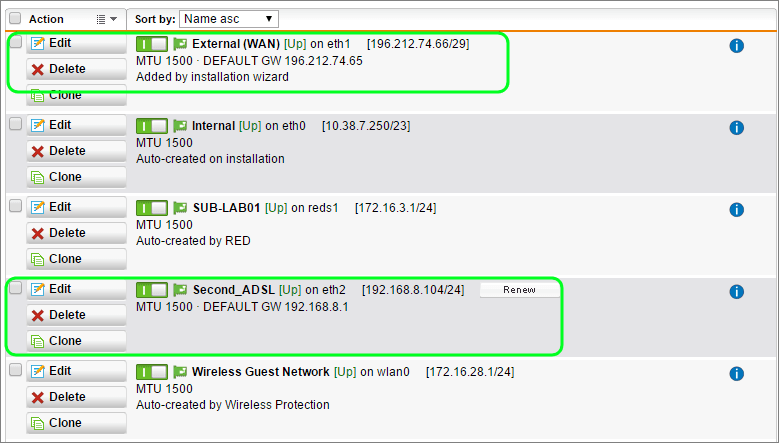
That’s all there is to configuring basic uplink balancing. If you have an environment where your two connections are equal, you do not have to configure anything else. But since this would rarely be the case, let's dive in to some of the more granular settings.
Adjusting Uplink Balancing
By default, both links are rated equal and the same number of connections are balanced across each of them. You can influence this by configuring the uplink balancing scheduler.
Active Interfaces Scheduler
- Open Interfaces & Routing | Uplink balancing | Active interfaces
- Click the grey tool icon
- You can now specify different relative weights for each interface
- You can also specify a persistence duration based on the source address (more on persistence below)
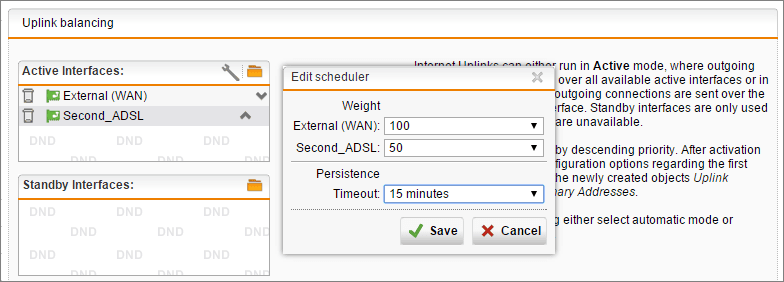
In the image above, you can see that I have set the weight in a 2:1 ratio and reduced the Persistence timeout down to 15 minutes.
Active and Standby Configuration
Having two active, weighted interfaces is great for a number or reasons, but you might not always want this. Fortunately, Sophos UTM also allows you to specify active and standby interfaces.
Sophos UTM uses link monitors to detect if the active link has failed. If a failure is detected, then the standby link is activated and traffic is routed over it. The UTM continues to monitor the Primary link to see if it comes back up again. When it does, it puts the standby link back into standby.
To configure active and standby interfaces:
- Open Interfaces & Routing | Uplink balancing | Active interfaces
- Delete the standby link from Active Interfaces
- Browse and add the standby link to Standby Interfaces
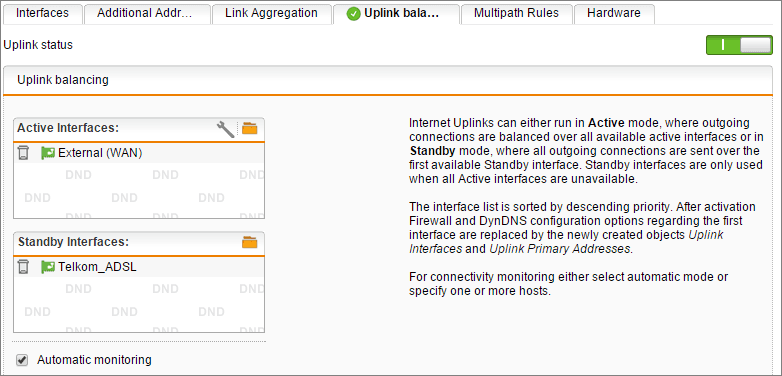
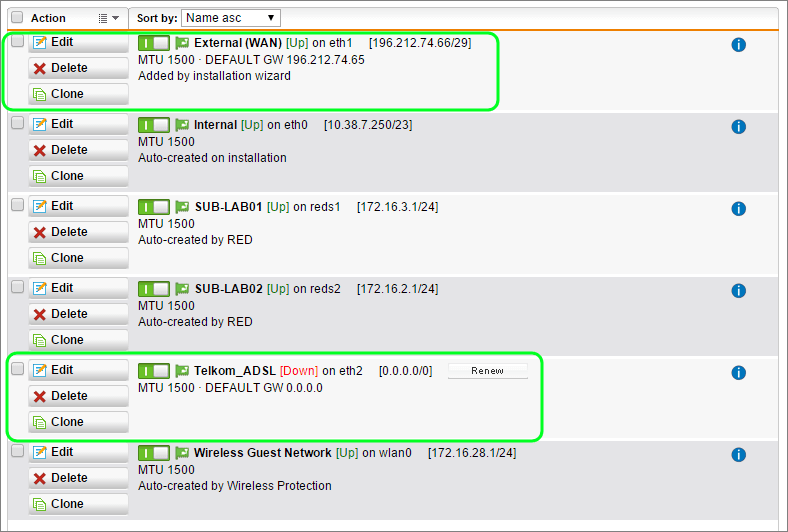
You can verify that setting are working by checking the Interfaces screen. You will notice that the standby link goes from UP to DOWN. If you simulate a failure on the active link you will see that it automatically sets the standby link to UP and takes it DOWN when it is no longer required.
Multipath Rules
Multipath Rules only apply to the implementation where multiple active uplinks are used. To explain what multipath rules are, we need to have a look at the default persistence behavior.
The source address is used to set persistence. This means that all traffic originating from an IP will persist over a single link. This will be re-evaluated after the persistence duration specified in the balancing scheduler.
Multipath rules allow you to change this behavior, and allow more than one link to be used by a single source address. You still want persistence, but you want it to be more dynamic.
Let’s have a look at the example HTTP by Source/Destination Rule. They key here is to look at the itf. Persistence (Interface Persistence) field

This show us that persistence is based on the Source and Destination. This allows the client to actively use both Internet links, but it is smart enough to persist active connections over the same link.
Getting Creative with Multipath Rules
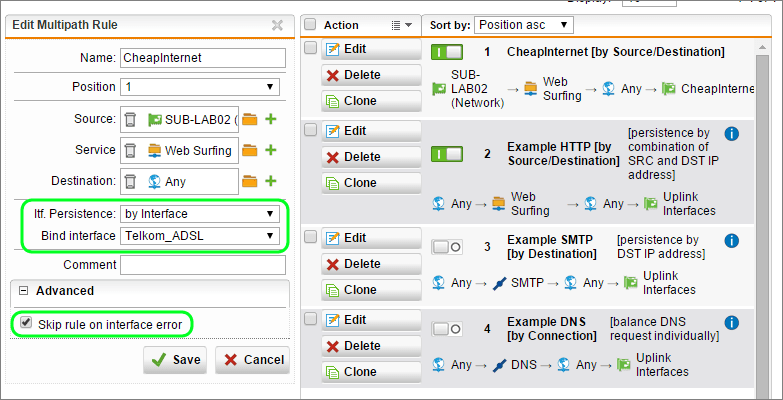
As you can see, Multipath rules enable more granular control over how the links are used, and you can get very creative with this. For example, let's say we have a remote site on a RED device and we only want to give them Internet access over our cheap ADSL link.
- Open Interfaces & Routing | Interfaces | Multipath rules
- Click +New Multipath rule
- Source : our RED network
- Service : Web Surfing
- Destination : Any
- Itf. Persistence : by interface
- Bind interface : the "cheap ADSL" interface
- In the Advanced Section, check the box for Skip rule on interface error
- Save
This is great, but let’s say we want to scale this up over multiple cheap ADSL connections:
Create an Interface Group
- Open Interfaces & Routing | Interfaces |Interfaces
- Click \+ New Interface
- Specify a name
- Type: Group
- Drag the relevant cheap ADSL interfaces into the Interfaces box
- Save
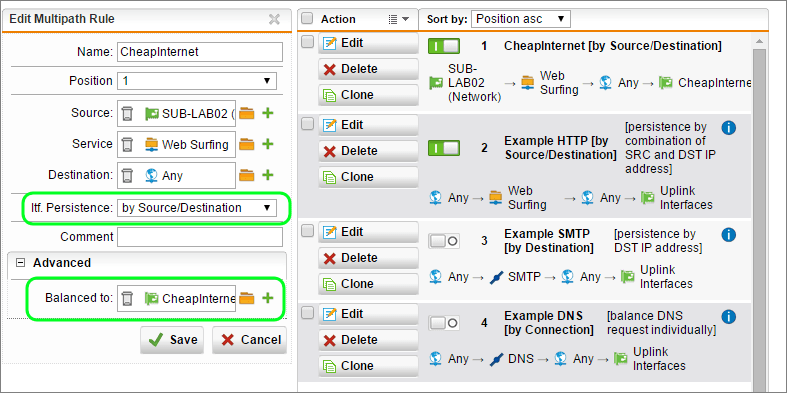
Create a Multipath rule to use your group
- Open Interfaces & Routing | Interfaces | Multipath rules
- Click +New Multipath rule
- Source : our RED network
- Service : Web Surfing
- Destination : Any
- itf. Persistence : by Source/Destination
- In the Advanced Section, change Balanced to: The group we created earlier
- Save
Conclusion
There's no question that ISP redundancy is important. If you try to achieve this using the wrong network layer, equipment, or device configuration, you can end up with a complicated routing mess that does not balance effectively.
By making use of Uplink balancing on Sophos UTM, you can leverage the full layer 7 functionality of the UTM to make routing and balancing decisions based on your criteria, and the health of your links.
9 Comments
Archived from our previous comment system.
- Mohamed Ibrahim
i have sophos utm 9.4
with 3 NIC
1 Lan and 2 wan
in wan i have internet speed 2MB for each wan
i want your help to integrate the speed and use the 2 wan as 1 and download with 4MB/S not to loadbalance thim
How Can i do that- Etienne Liebetrau
Hello there
I completely understand what you want to achieve. Unfortunately it is not possible. The two lines give you a total of 4Mb but each session would have a maximum throughput of 2Mb. You would achieve 4Mb of down speed if you had two separate downloads happening concurrently each capping out at 2Mb
The only way that you would be able to achieve the single 4Mb connection is of the ISP also supported doing some sort of channel binding such as ether-channel. Typically they would then provide you with a edge router that would handle the client side of the binding too.
Regards
Etienne - Torval
Mohamed,
It is possible to bond those two Internet links together, but as Etienne already mentioned not with normal firewall or routing devices. Optimally this would be done by the ISP as Etienne already stated. But you can also use a 3rd party service. Bonding them together with a 3rd party service uses a special gateway device that essentially tunnels your WAN Links upstream to a larger bandwidth pipe where they can appear and function as a single IP address using Net Masq.... But the bottom line is you will not be able achieve this on your own using just local hardware. And you will not be able to do this for free since it uses the 3rd party's own bandwidth (or if you do find it oferred for free you should assume they are spying on you, injecting ads etc. just like the free VPN services....)
Here are two common link bonding services providers:
- David
How would I go about routing ALL traffic from a Remote RED site via a specific Interface? Currently its all running on one connection and I have a new 10/10mb that has just been installed.
- Etienne Liebetrau
Hi David
You would set up a multipath rule for this.
Open Interfaces & Routing | Interfaces | Multipath rules
Click +New Multipath rule
Source : Your RED network
Service : Any
Destination : Any IPv4
Itf. Persistence : by interface
Bind interface : the "new external" interface
In the Advanced Section, check the box for Skip rule on interface error (Optional)I have not personally been able to try this but this should do it.
- Chad Patterson
Any chance you could update this for XG version 17?
- David
This is brilliant and has helped me in a bit of a scrape here in the office, our leased line actually has a line fault, and what we have is a second ADSL line as a backup and that switches over fine, but where we host our own websites in house how would I get them on the firewall to redirect when the main line goes down?
so normally website a is on our main line via an address of 92.x.x.1
Line goes down and other line kicks in but has an ip of 197.x.x.3
Our web application rule points only 92.x to the site how would we work around this?
- Etienne
Hi David
As you have discovered, ISP redundancy works great for outbound but not for inbound. The way I worked around this issue was to create two separate web publishing rules for each web application. One with an IP on Line A and another with an IP on Line B. I would then also alter public DNS to have a record for each IP address for the stated host name.
This Basic DNS round robin approach works relatively well but is not 100% slick. Ideally you would have some sort of DNS service that supports health checks and automatically favors one IP over the other. Cloud providers have the functionality so you don't have to build your own.
- Mark Baker
Hi, great post, just a quick question during the early stages, if the UTM device has 2 interfaces, one for LAN and one for WAN, does this need a third interface to connect to the backup connection, or can this be achieved via router daisychain?
Thanks
Mark