
How To Solve "13 The Data Is Invalid" Error in Forefront TMG
This article shows you how to solve the error "13 The data is invalid" in Forefront TMG when accessing a web server using Chunked encoding.
 Uilson Souza
Last week we had a problem with one of our customers that was trying to access a new web site recently built and hosted at their cloud provider. When running a query in Forefront TMG Logs and Reports view, I found the error below:
Failed Connection Attempt Log type: Web Proxy (Forward) Status: 13 The data is invalid. Rule: Source: Internal Destination: External _ _Request: GET http:// Filter information: Req ID: 0fdbab91; Compression: client=No, server=Yes, compress rate=0% decompress rate=0% Protocol: http User: anonymous
Cause
This error occurs when the destination Web Server is using Chunked Encoding but it is not passing the correct TransferEnconding header.
When researching about this problem I found a great post from my friend Yuri Diógenes that explains why this problem happens:
According to RFC if a server is using chunked encoding it must set the Transfer-Encoding header to "chunked". In order to compress the content we need to accumulate all the chucks and then compress. When it works, TMG knows that all that content is part of the same HTTP request since it says in the HTTP Response Header; therefore it waits for the entire content, compress and send it back to the client. On the failing server we receive the first answer that doesn’t say that the content is chucked and right after that we receive other chucks, since HTTP Compression is enabled it fails to reassemble all the content since it doesn’t know that they belong to the same content." - Yuri Diógenes at: https://blogs.technet.com/b/yuridiogenes/archive/2010/12/22/3292163.aspx
Solution
If possible, the best way to solve it is by asking the web site administrator to change the "TransferEncoding header" parameter on the web server to "chunked". See How to enable chunked transfer encoding with IIS.
Workaround
If you cannot wait for the website administrator to change this, you can workaround the problem by disabling HTTP Compression for the destination site.
Disabling HTTP Compression altogether will cause higher bandwidth consumption and may cause other kinds of Internet access errors, so the better solution is to keep this service enabled and adding the destination IP as an exception:
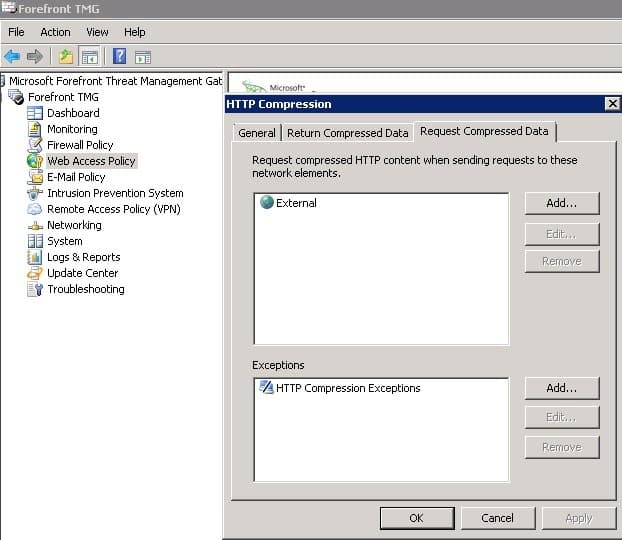
To add exclude a destination IP from HTTP Compression
- Open the Forefront TMG Management Console and go to Web Access Policy
- On the left hand side, click Configure HTTP Compression under Tasks.
- On the Request Compressed Data tab, click the Add button next to Exceptions
- To exclude a single IP, add a Computer for the destination IP address you want to exclude. Alternatively, you can create a new Address Range or Computer Set to exclude more than one IP addresses. I created a new Computer Set called 'HTTP Compression Exceptions' (as in the image above).
- Click Add to add your new Computer, Computer Set or Range to the exception list.
- Click OK and Apply.
Once the exception has been added, try browsing to the web site again and the issue should be resolved!
I hope this post may help you!
6 Comments
Archived from our previous comment system.
- Stephan
Good blog!
helped my out, thanks:)- Scott Glew
Great to hear Stephan. Hope everything is going well!
- Dennis
This was an issue in our environment with search.yahoo.com. Following a link from the yahoo.com search results resulted in this error. Thanks for the information as this cleared the issue right up!
- Grant Terry
What IP address or addresses did you use for search.yahoo.com? I have added two IP's associated with search.yahoo.com, but the problem still exists.
- Scott Glew
search.yahoo.com currently resolves to 98.137.250.95 for me. Perhaps run a live log query in TMG's management console (Logs and Reports view) to see the IP associated with search.yahoo.com (use a filter such as URL contains search.yahoo.com). I hope this helps!
- Rivaldo
Thank you, solve my problem here.