
Mobile Friendly Forefront TMG Forms Based Authentication Template
If you're using TMG Forms Based Authentication with Web Publishing Rules, download our mobile friendly, responsive authentication form template.
 Scott Glew
Microsoft Forefront TMG 2010's Web Publishing feature enables you to securely publish internal sites such as Outlook Web Access and SharePoint to the external network. Using Forms Authentication to secure these sites is a good choice because with a little bit of work, you can customize the login form with your own corporate identity.
Unless you've been living under a rock for the past 5 years, you know that A LOT of web browsing is now done on small screen devices such as smart phones and tablets. Unfortunately, TMG's default authentication form is not very mobile friendly. By default, browsing to a published site secured with Forms Based Authentication on an iPhone looks like this:


Sure, with a bit of zooming and scrolling you can eventually login using this form. But try logging in while driving between lunch meetings with a coffee in one hand! Suddenly the ability to login becomes a real chore.
Fastvue does not condone driving while logging into corporate resources and drinking coffee. It's very dangerous. Don't do it. Really.
Mobile Friendly Authentication Template
Luckily, your users no longer have to live with this peril as we have developed a mobile friendly TMG Forms Based Authentication template. Now when users browse to your published site, they can see this on their hand held devices:
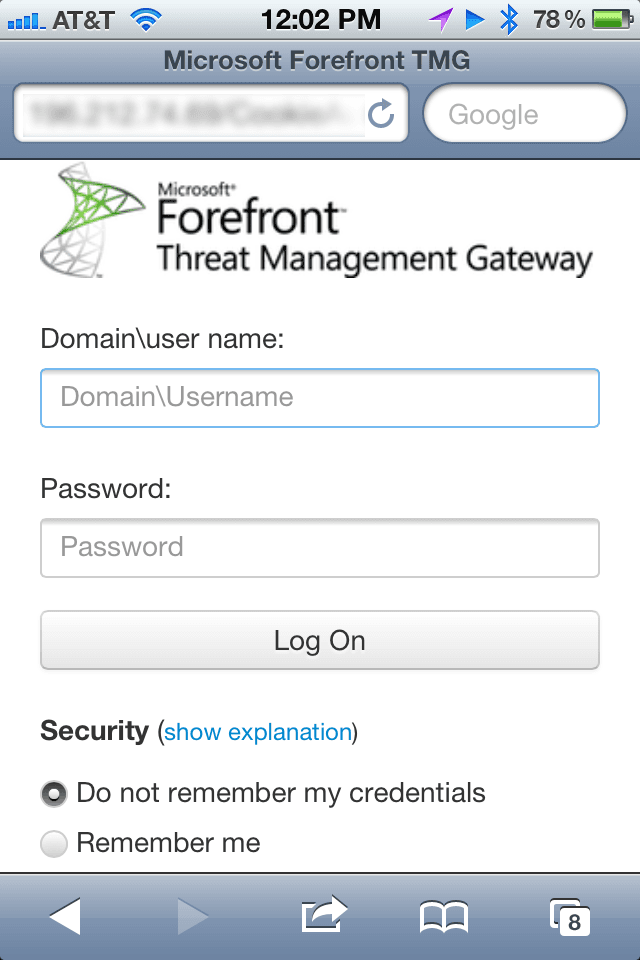
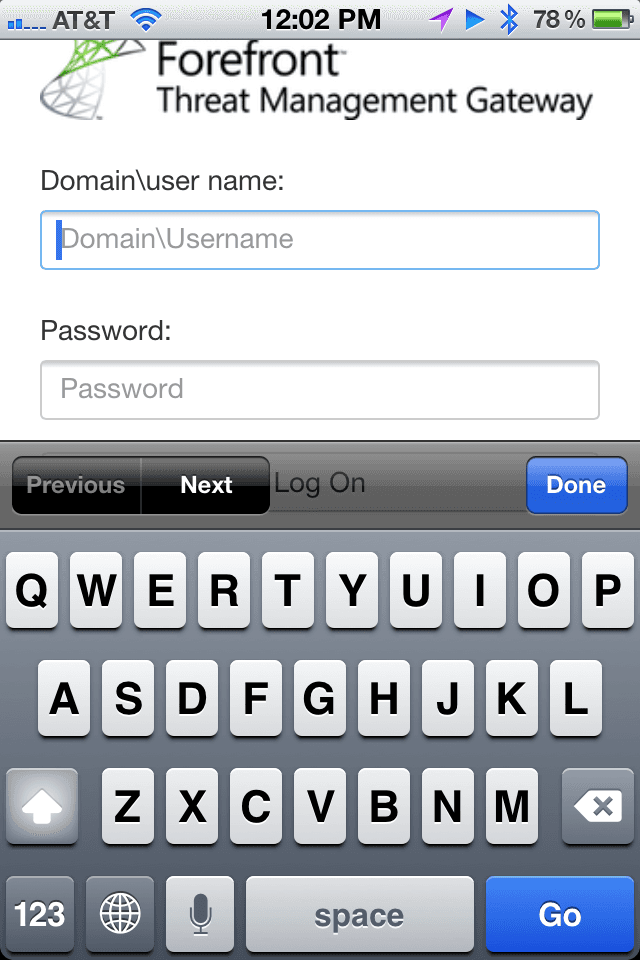
No more pinching, zooming or scrolling! And the form looks great on large screens as well:
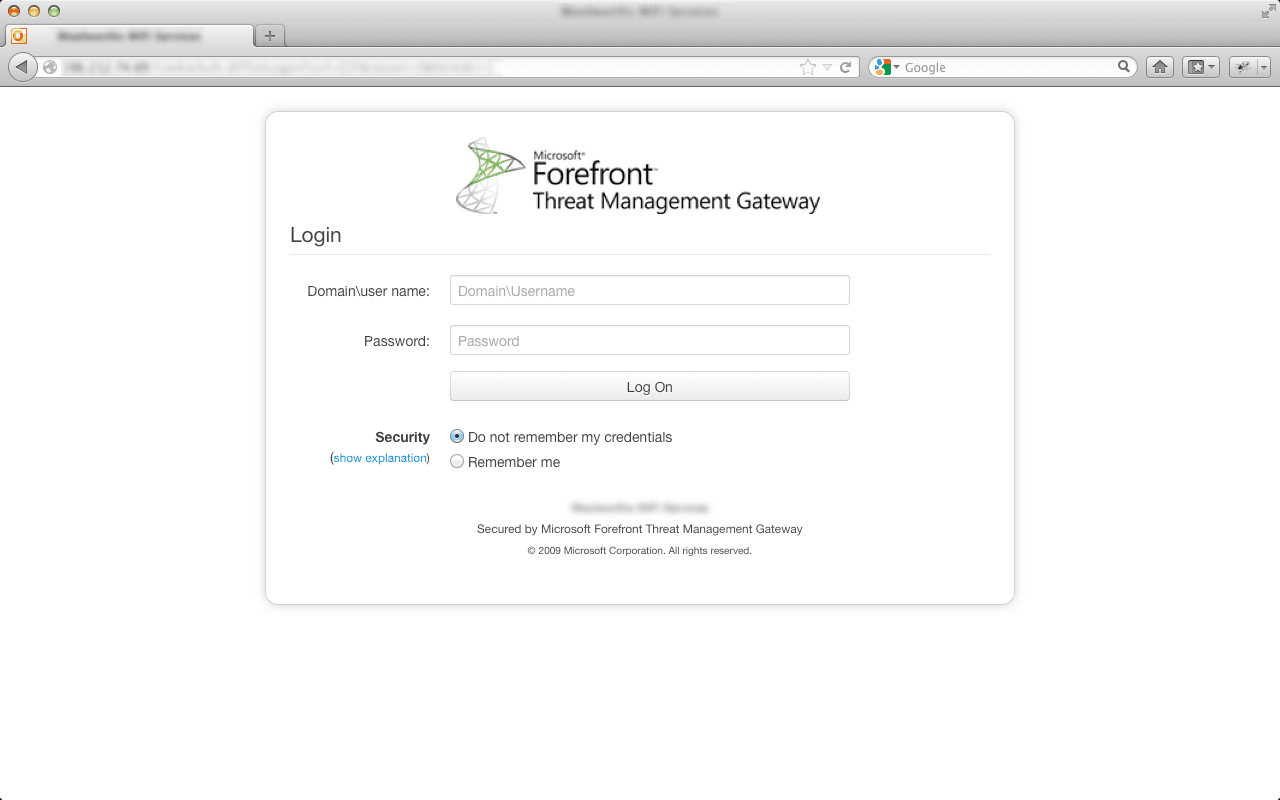
Using The Template
The good news is that this template is free for you to download, modify and use in your environment.
- Download the template files here, or from the github repo.
- On your Forefront TMG Server, duplicate the existing ISA Templates folder at: C:\\Program Files\\Microsoft Forefront Threat Management Gateway\\Templates\\CookieAuthTemplates\\ISA
- Rename the duplicated folder to 'Custom'. You should now have the following path: C:\\Program Files\\Microsoft Forefront Threat Management Gateway\\Templates\\CookieAuthTemplates\**Custom**\\HTML
- Extract the downloaded zip file into the HTML folder above. Replace the usr_pwd.htm file when prompted.
- In your TMG Management Console, edit your desired Web Publishing rule and go to the Listener tab. Click Properties.
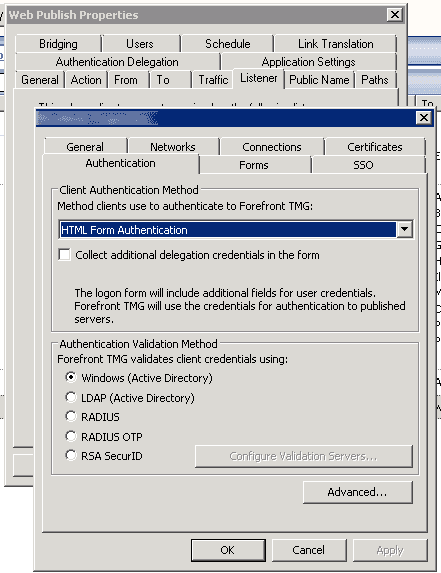
- On the Authentication tab, ensure HTML Forms Authentication is selected.
- On the Forms Tab enter 'Custom' (you don't need to enter the entire path, just the word 'Custom' without the quotes)
- Click Apply and then apply the changes to TMG.
- Restart the TMG Firewall Service (Unfortunately TMG Caches these pages and restarting the service is the only way to clear it as far as I know).
You can also replace the Forefront TMG logo with your own company's logo. Simply replace the 'Logo.png' file with your own company's logo. Again, you will need to restart the TMG Firewall service for the change to take effect.
Issues
For now, only the usr_pwd.htm file has been customized. This file is served when using Windows (Active Directory) authentication (set on the Authentication page in step 5 above).
I intend to customize the other forms (Radius and SecureID) soon. Feel free to contribute!
31 Comments
Archived from our previous comment system.
- DavidRa
Very nice - it's about time someone created some publicly available, alternative TMG logon pages.
Much kudos.
- Scott Glew
Thanks David!
- Puneet Gupta
Dear,
how to Configure and Implement http web proxy form based authentication in tmg.
- Scott Glew
Hi Puneet,
As far as I know, forms-based authentication in Forefront TMG can only be used to authenticate incoming requests for published web servers, not for outgoing proxy.
- shapira
hellow,
you writen
As far as I know, forms-based authentication in Forefront TMG can only be used to authenticate incoming requests for published web servers, not for outgoing proxy.now, can be used for outgoing proxy?
- Scott Glew
According to the documentation: http://technet.microsoft.co..., "Forms-based authentication in Forefront TMG can be used to authenticate incoming requests for published Web servers.". There is no mention of using it for outgoing requests.
You could use a third party app such as Captive Portal for this: http://www.collectivesoftwa...
- Rob
This is great, thanks for this. Only question is this now, had anyone had any luck having the iPhone iOS keep the ISA/TMG credentials entered so they can be autofilled? It never seems to prompt me to save the username/password. Does anyone else share this problem?
- admin
Hi Rob,
Have you turned on AutoFill in Safari's settings? Go to Settings | Safari | AutoFill | Names and Passwords (switch to ON).
Hope this helps!
Cheers!
Scott- Rob
Yes, I had this already enabled. Just doesn't seem to want to work for this page...not sure why yet...anyone else replicate this issue?
- Tuurtje
Removing the autocomplete="off" should help you with autofill on your ipad.
- Scott
This is a fantastic guide. Thanks so much for sharing.
I've adapted it to work for Exchange OWA based forms. slightly different steps but essentially the same concept.
http://kickthatcomputer.wor...- Scott Glew
Terrific! Thanks for letting us know about the Exchange OWA template.
- Scott
I seem to have noticed a small quirk. Not sure if it's just the way I'm using it or not.
When I set this up for OWA (as I described on my blog) it doesn't seem to recognise the "public/private" computer option. I find when using the default forms everthing works fine, but when using the mobile friendly forms my OWA sessions just seem to lose the connection.
I don't really know as this stage how to test for this and haven't looked into debugging it, but only when using the mobile form for OWA do I need to re-connect multiple time each day.
Any thoughts or suggestions what to look for?- Scott Glew
Hey Scott,
Sorry it took me a little while to get to this. Yes, I think I've found the issue. If you have 'Remember Me' checked, the login code then checks to see if the 'Use Outlook Web App Light' option is checked. I didn't have this option on my version of the template, so the login code would fail. I've now created two version of the template, one for Exchange OWA and one for everything else. Check out the GitHub Repo for the latest files. Let me know how it goes and thanks for letting me know about this!
- Scott Glew
OK, this should be really fixed now thanks to a change from ablanken. Get the latest at:
https://github.com/scottgle...
- Johan Lindahl
Awesome stuff. I have one small issue. It all looks and works ok except for the fact that once I use the custom template the title gets changed to Outlook Web App and the bottom of the page also says Connected to Microsoft Exchange. Almost as if it thought that it's publishing the OWA (OWA still has the original forms login). Any ideas as to what is causing this?
- Scott Glew
Hey Johan,
Thanks for the feedback. Open the user_pwd file in notepad and change:
<title>@@L_OWAWindowTitle_Text</title>;
To:<title>@@L_WindowTitle_Text</title>And delete these lines:
<small>@@L_OWAConnectedToExchange<br />
@@L_SecuredByISA<br />
Let me know how it goes!
- Johan Lindahl
That worked like a charm. Thanks alot!
- Scott Glew
The GitHub repo has just been updated thanks to a fix from ablanken. It fixes an issue with the public/private computer option. Before the changes, TMG was acting as if the public computer option was always selected, even if the private computer option was chosen.
Get the fix at: https://github.com/scottgle...
Thanks ablanken!
- Will Smothers
Scott,
This is a GREAT solution! However, my problem is that the interface is like the one in TMG for Exchange 2010. Do you have one for Exchange 2013?I read through Scott's blog (http://kickthatcomputer.wor... but he really does not explain how he got the Exchange 2013 interface to use. Hopefully either you or he will know the answer.
Thanks in advance!
Will- Scott Glew
Hey Will,
Funny you should ask about this as I'm working on a template for Exchange 2013 right now. It's not quite working right just yet, but I'll hopefully make it available soon.
In the mean time, I've heard from a good source that the 'Exchange' template in the existing package works for Exchange 2013, it just 'looks' like the Exchange 2010 style.
Here's a sneak peek at the new 2013 template that should be available soon.
http://www.fastvue.co/wp-co...Cheers!
Scott- Will Smothers
Scott,
As always, YOU ARE THE MAN!!!I will be happy to help beta test it when you are ready. If this is like the rest of the Fastvue products, it will be GREAT!
Talk to you soon!
- D Bachen
Just wanted to say thank you for this. Saved me from having to build it from scratch.. Our old company had a customized logo version and I wanted something similar.. Perfect timing that you released to 2013 version, because that's what we put into production!!
- Scott Glew
Great to hear it helped out Duncan!
- Ivan Dretvic
Hi,
This is a fantastic resource. Thanks for sharing with us. I have struck a problem where the border, resizing and the Login text does not display in Internet Explorer 9.0.8112.16421 32Bit version.
Safari and Firefox display correctly.I have logged an issue with screenshots here https://github.com/scottgle...
Cheers,
Ivan- Scott Glew
Hey Ivan,
Thanks for reporting this.
I believe what you're seeing is IE displaying the form in Compatibility Mode, rendering the page as if it was IE8. This is the default mode for sites in the 'Intranet' zone.
I've added the X-UI-Comatible meta tag to all the HTML files to force IE to display the form with the latest rendering engine possible.
Grab the latest usr_pwd.htm file and see how it goes. Be sure to clear the caches - both by restarting the Firewall service and by hitting Ctrl + F5 in your browser.
You can also check the Compatibility Mode of your browser by hitting F12 to bring up the dev tools and playing with the Browser Mode and Document Mode menu items.
Cheers!
Scott
- Jan
Thx for sharing, nice upgrade to our tmg look & feel..
Maybe NeXT project could be modifying the change password page/confirmation.- Scott Glew
No problem Jan. I've since created an Exchange 2013 version of the files that includes the password forms. Grab the latest at https://github.com/scottgle... and use the /Exchange2013 folder.
Cheers!
Scott
- Stephen
Thanks for the guide and the files
- Scott Glew
My pleasure Stephen. Happy to hear they are helping people out :)
- Amir
Thanks very much for this. I also customized the Change Password process for ISA to match this. How do I submit those two extra files?