
Monitor Bandwidth and Limit Internet Speed in Forefront TMG 2010
This article explains how to use Forefront TMG with TMG Reporter and Bandwidth Splitter to effectively monitor bandwidth and manage Internet speed.
 Etienne Liebetrau
Fastvue TMG Reporter is unique in that it allows you to monitor internet usage in real-time. Another great feature is that it allows you to generate longer term internet usage reports. This allows you to visually identify and isolate not only user behaviour but also system behavior.
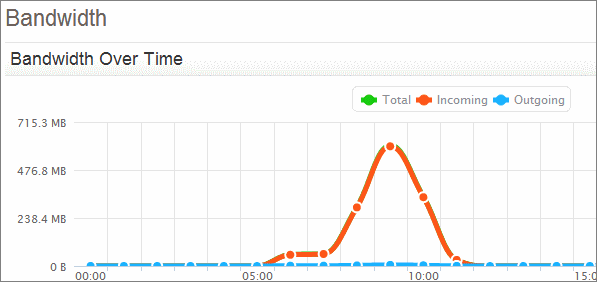
A good example of this system behavior is your WSUS server retrieving updates and patches. These updates are important but you would not want them to impact users internet speed during office hours. You may also occasionally have the requirement to limit certain user's internet speed so that their online behavior doesn't impact others. Below is a user report showing the bandwidth peak usage.
Forefront TMG allows you to create scheduled rules that grant or deny access to a system or user. The problem is that this is a binary 'off or on' option. It also has a limitation in that it will not close any active sessions. For example, a large download will not be stopped once the schedule becomes active.
Using Bandwidth Splitter
Bandwidth Splitter is a very good and cost effective tool for implementing more flexible bandwidth control in Forefront TMG. It is also very capable and supports arrays.
One really nice feature is that allows you to not only limit the user’s available bandwidth but you can also set usage caps. What makes it even better is that you can specify a soft cap after which the bandwidth is further throttled or shaped. Bandwidth Splitter has the ability to do this for authenticated users based on their AD username, as well as for IPs. Check the Bandwidth Splitter site for more information.
This guide will step you through using Bandwidth Splitter for the following use cases:
- Ensure no user has more than x amount of bandwidth available
- Set a soft cap after 100MB of data usage the resets daily
- Throttle a user to a very low bandwidth once the cap is reached
Creating The Shaping Rules
1\. Limit the maximum bandwidth per user
This first rule will limit the maximum bandwidth available for each user in your 'Internal' network.
- Open the Forefront TMG Management console
- Expand the Bandwidth Splitter Section
- Right click Shaping Rules and select New | Rule
- Name the rule 'Pre-cap shaping'
- Select IP address sets specified below
- Click Add | Networks | Internal
- Click Next
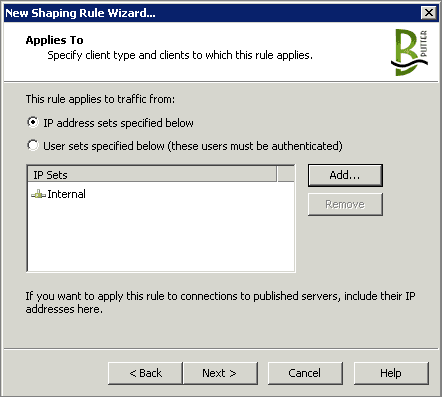
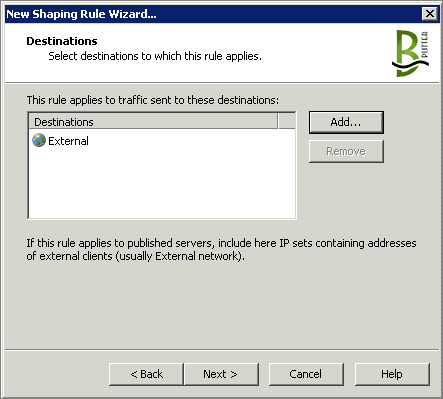
- On the Destinations page click Add | Networks | External and click Next
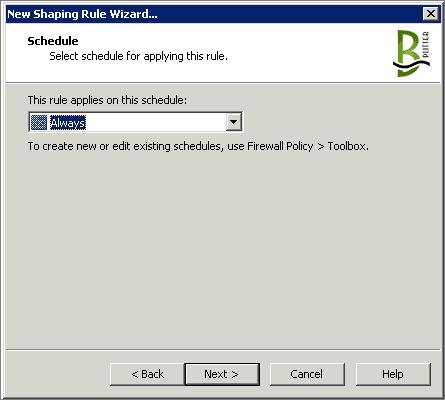
- On the Schedule page, select Always then click Next
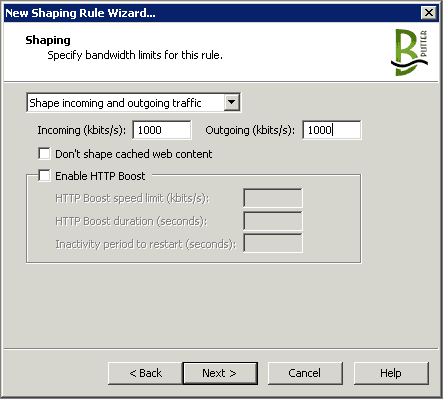
- On the Shaping page select 'Shape incoming and outgoing traffic'
- Specify the Maximum available incoming and outgoing bandwidth values Note: this is in kbits/s and not KB/s
- Click Next
- Do not limit the number of concurrent connection. Click Next
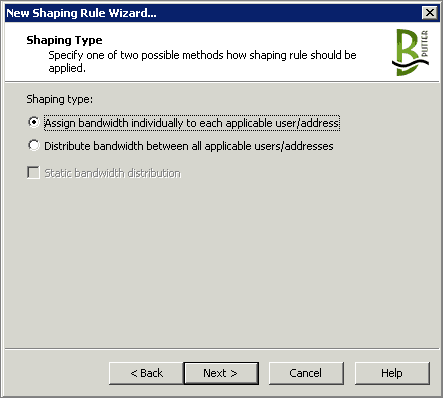
- On the Shaping Type page select 'Assign bandwidth individually to each applicable user/address'
- Click Next
- On the Extra Parameters page do not check any boxes. Click Next
- Click Finish to create the rule.
2\. Throttle bandwidth once the usage cap is reached
We now need to create another rule to limit the maximum bandwidth available once the usage cap is reached.
Follow the same process above but with the following changes:
- Name the shaping rule 'Post-Cap Shaping'
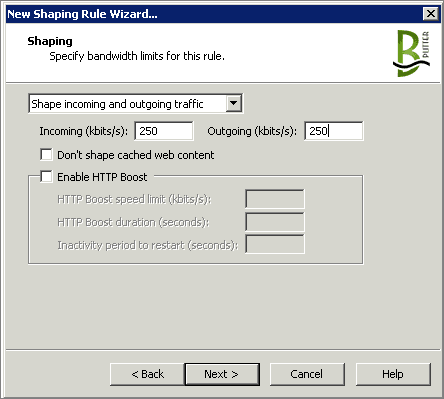
- On the Shaping page select a smaller kbits/s value
**
**
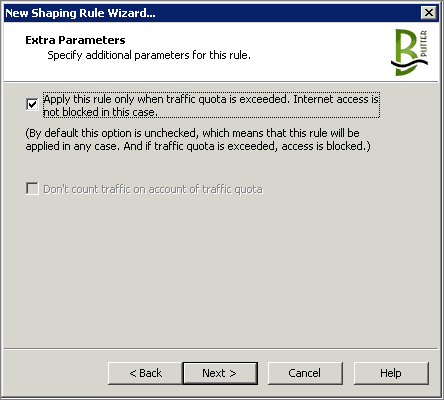
- On the Extra Parameters page check Apply this rule only when traffic quota is exceeded
Reorder the rules and apply changes
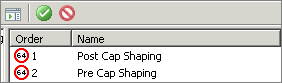
You should now have two rules in the Rules list. You need to reorder the Post-Cap shaping rule above the Pre-Cap Rule. To do this:
- Right click the 'Post-Cap rule' and select Move Up
- To apply these changes to Forefront TMG you need to click the green check button in the toolbar.
Creating the Bandwidth Cap / Quota Rule
The following rule will set the limit for “high bandwidth” usage. After this amount of data has been used the “lower bandwidth” limit is enforced.
- Open the Forefront TMG Management console
- Expand the Bandwidth Splitter Section
- Right-click Quota Rules | New | Rule
- Name the rule 'Soft Data Cap'
- Select 'IP address sets' specified below
- Click Add | Networks | Internal
- Click Next
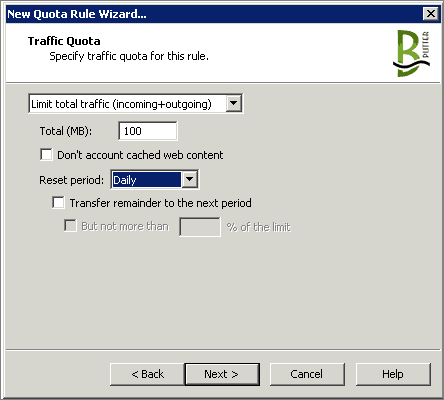
- On the Traffic Quota page select 'Limit total traffic (incoming+outgoing)'
- Specify the Total MB value you want to allow
- Select the Reset period to 'Daily'. Click Next
**
**
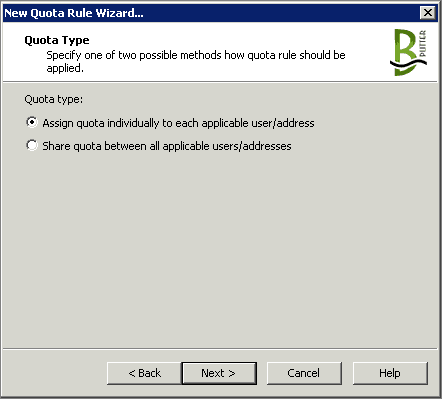
- On the Quota Type page select 'Assign quota individually to each applicable user/address'
- Click Next and click Finish
- Apply the rule to the Forefront TMG configuration with the green check button in the toolbar.
Testing the configuration
Since the data caps and available bandwidth is not visible to the user during normal usage it is a little trick to test the effectiveness of your rules. To test the configuration yourself, set a low quota so that you can easily hit the soft cap. You can watch the usage graphs in the bandwidth manager console but a more graphic way of doing is as follows:
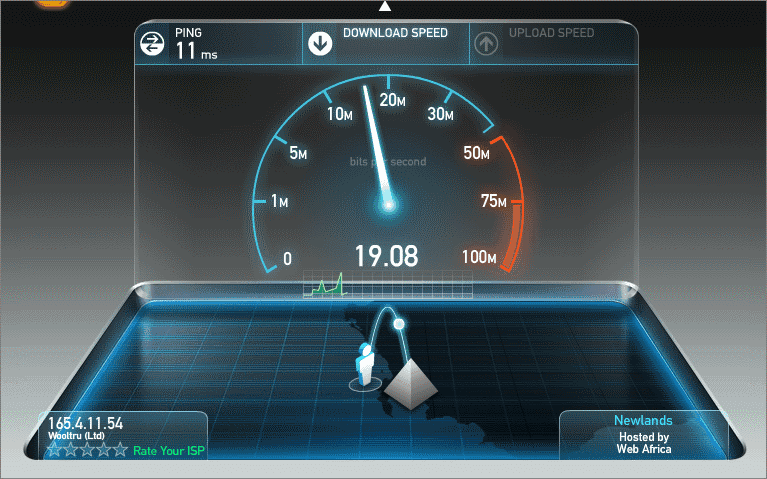
- Use a speed benchmark tool like https://speedtest.net
- Run a benchmark test before you consume any of your cap data. This would give you an indication of what your maximum throughput is.
- Generate enough data to use up your cap (Google Earth does this very quickly)
- Once things start to slow down, run the speed test again. You should now see the data rate being pegged to your low limit.
That’s all there is to it. This is a basic example for some common use cases, and should hopefully give you a good indication to the bandwidth management potential using Bandwidth Splitter.
6 Comments
Archived from our previous comment system.
- Atieh
hi
i installed bandwidth splitter recently and i have some problem with its monitoring. in front of some user there isn't anything. i mean it doesn't show the quota rule and so it doesn't count down . i have licence and i have defined all user in B.s. independently of Isa.
is there any help?- Scott Glew
Hi Atieh,
Thanks for the question. I have forwarded it to Bandwidth Splitter's support address, and hopefully they will add a comment in here or reply to you directly.
Cheers!
Scott
- Andy
This may be caused by incorrect configuration of shaping and quota rules. Monitoring only shows connections for which shaping or quota rule is found and these clients have licenses (see License tab in the BSplitter properties).
To make work Bandwidth Splitter rules that have users or user groups (not IP address sets) in the Applies To field, those users should be authenticated. For this purpose they should be allowed in generic Firewall Policy Rules as authenticated users, that is at Users tab you should specify something other than All Users, for example All Authenticated Users.
For MAC users you need to create shaping rule based on the IP. - Abdul Karem
Am going to start small isp and I want to buy full version for mantaining minimum 100 connections with different speeds.
- gheath
thank you but i need every user access one computer in same time
how make this !!!. - pheakdey.thon
Hello..
Can anyone have an idea to configure bandwidth splitter with single network adapter topology of tmg 2010?
If anyone have a solution, please help me.
I am waiting for you reply.