
Reporting on Forefront TMG's Remote SQL Database
Fastvue TMG Reporter now supports importing logs when Forefront TMG is logging to a Remote SQL Database.
 Scott Glew
Microsoft Forefront TMG 2010 supports a variety of different logging methods, and until now TMG Reporter has supported only the SQL Express and W3C Extended log methods. But we're pleased to announce support for one more - remote SQL Database!
If you have configured TMG to log to a separate SQL database (and there are some great reasons to do so), we would love to hear your thoughts on this new feature.
Installation
- Make sure you're running the latest version of Fastvue TMG Reporter, by downloading it here.
- Run the Fastvue TMG Reporter installation on your Fastvue server. You do NOT need to install the Fastvue Arbiter on your TMG Server when using the new SQL importing feature. TMG Reporter connects directly to your remote SQL Database.
See our Getting Started guide for detailed steps on the installation process.
Adding an SQL Source
Once TMG Reporter is installed, browse to the site and ignore the Start screen asking you to enter the name of a TMG server. Instead, proceed to the Settings tab.
On the Sources page, click Add Source. You will notice a new SQL Server option.

Adding TMG's Remote SQL Server Logs as a Source
Enter the credentials required to connect to your SQL Server, and select the database and tables that TMG is logging to.
Note: If you are using Windows Authentication, make sure the machine account (domain\\machine$) of the Fastvue TMG Reporter server has read access to the database.Tip: If you have more than one Web Proxy or Firewall table, you can enter wildcards such as *Web* to select MyWebProxy1, MyWebProxy2 etc. Or just enter * and TMG Reporter will check every table in the Database.
Click Add SQL Server and you should soon see records being imported into the source. You can then proceed to the Dashboard or Alerts tab to view live information. You can also run reports on the Reports tab, but check the source to see which dates are available for reporting on.
Enable/Disable TMG Servers
You will also notice a 'Manage Servers' tab on your new SQL Source. Click this tab to view a list of all the TMG Servers found to be logging to the database. You can enable and disable importing from these servers as required.
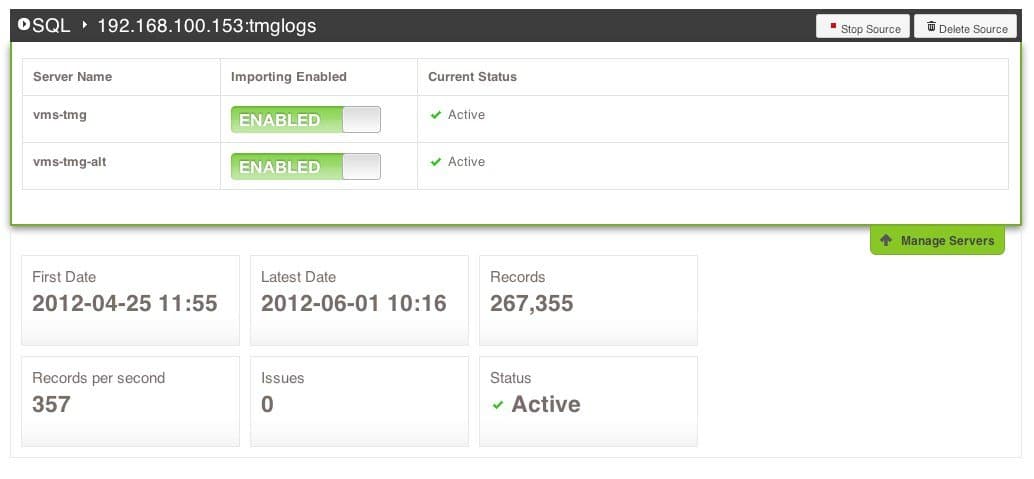
The number of TMG Servers logging to the remote SQL Database
Note: TMG Reporter's licensing is based on the number of TMG Servers you need to monitor. Take a look at the servers in this list before requesting a quote.
Done!
That's it! You should now be monitoring all TMG Servers logging to your remote SQL Database.
If you're testing this out, please let us know what you think!
2 Comments
Archived from our previous comment system.
- Alireza Rahmatizadeh
Hi,
I've installed the latest dev build, but I do not have the Remote SQL option. I can only add a TMG server
- Scott Glew
Hi Alireza,
Thanks for letting us know. When you installed the latest dev build, did you specify a different virtual directory or site? Can you open IIS and see if there are two versions of the Fastvue site installed? Make sure you are browsing to the correct URL for the site and virtual directory that you installed the dev version to.
Also, hard refresh your browser with ctrl + F5 (cmd + R on Mac) to clear the browser's cache for the site.
Let me know how you go!
Cheers
Scott