
Updated Exchange 2013 Forms Based Authentication Templates for TMG
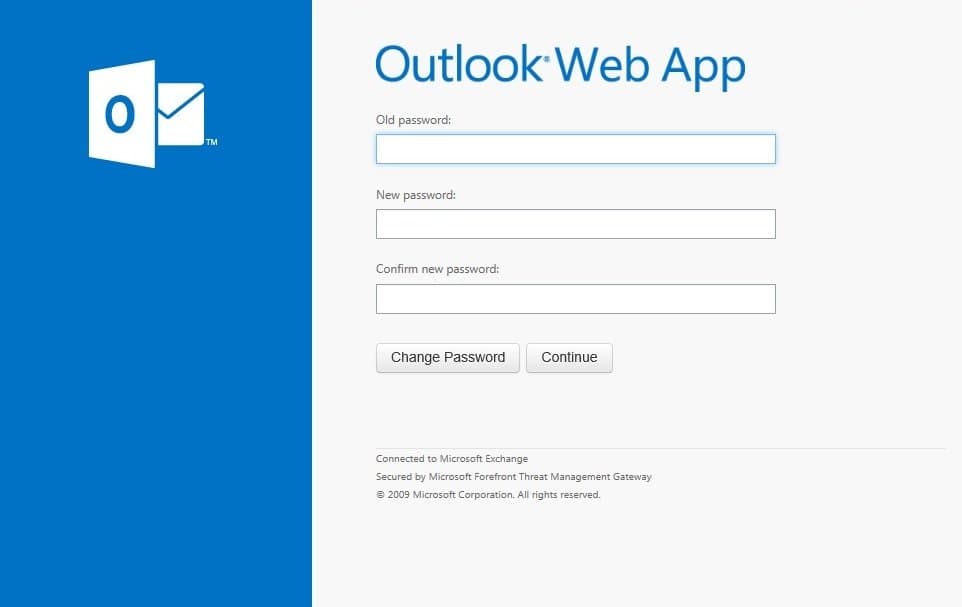
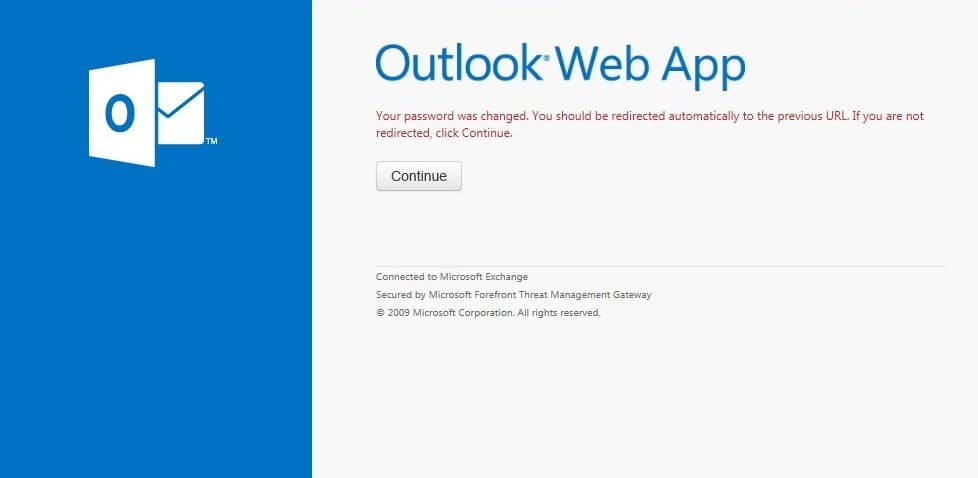
My Exchange 2013 Forms based authentication templates for Forefront TMG now include the Change Password, Radius and SecureID forms and more!
 Scott Glew
It's been a year since I created the Exchange 2013 Forms based authentication templates for Forefront TMG.
When they were released, only the main login and logout forms were reworked in the Exchange 2013 style, and I received many requests to extend this to other forms, such as the Change Password form.
I'm happy to announce that I have now updated ALL forms in the Exchange 2013 style. This includes the change password form, as well as the forms used for Radius and SecureID authentication.
To download and install the new Exchange 2013 Templates:
- Download the new template package here, or from the GitHub repo. The zip package contains three folders: ISA, Exchange and Exchange 2013.
- On your Forefront TMG Server, copy the existing Exchange OWA Template folder at: C:\\Program Files\\Microsoft Forefront Threat Management Gateway\\Templates\\CookieAuthTemplates\\Exchange
- Call the duplicated folder ‘Exchange2013′ (or whatever takes your fancy). You should now have a folder here: C:\\Program Files\\Microsoft Forefront Threat Management Gateway\\Templates\\CookieAuthTemplates\\Exchange2013
- Copy all files from the Exchange2013\\HTML folder in downloaded zip package into the HTML sub-folder of your new ‘Exchange2013′ folder (replace the existing files). Feel free to replace Logo.png with your own custom logo.
Configure Forefront TMG to use the new Exchange2013 Folder:
- In your TMG Management console, edit your Exchange Web Publishing rule and go to the Listener page. Click Properties.
- On the Authentication page, ensure HTML Forms Authentication is selected.
- On the Forms Tab enter Exchange2013 (you don’t need to enter the entire path, just the word ‘Exchange2013′ without the quotes)
- If you used the Exchange Publishing Wizard in Forefront TMG, you also need to go to the Application Settings tab and enter ‘Exchange2013′ in the ‘Type the custom HTML for set directory’ edit box.
- Apply the changes.
- Restart the TMG Firewall Service (yeah, I know… Unfortunately TMG Caches these pages and restarting the service is the only way to clear it as far as I know).
Thanks to everyone that sent in feedback and helped test these new templates in their environments. You know who you are! :)
13 Comments
Archived from our previous comment system.
- Benjamin
Hi and THANKS for this suuuuper tutorial!
I have one issue, how do i configure the form to support multiple languages? We have a lot of german users...Best Regards,
Benjamin Shirley
Paul Cramer GmbH
Germany- Benjamin
Or is it not the language which is causing the issue that i get @@L_OWALogoffUser_Text or @@L_CloseWindow_Text instead of the aprropriate text in the browser ?
Benjamin
- Benjamin
Me Again :)
I had to copy over the "nls" folder where the text strings for the different languages are stored from the default form folder to the new exchange 2013 form folder.
This solved the problem!
Benjamin
- Benjamin
One last comment.
The text "Sign In" in usr_pwd.htm is hardcoded and should be replaced by the variable used in strings.txt of individual language @@L_LoginButton_Text
Benjamin
- admin
Hey Benjamin,
Thanks for posting about the issue and the solution. I believe I didn't use the @@L_LoginButton_Text as the default text for Exchange 2013 OWA says "Sign In" and there is no string in the list of strings in TMG for this. But certainly for localization it makes sense to use it.
Cheers!
Scott- Benjamin
Hi Scott,
been using these forms for a few months now, and stumbled accross an issue. It does not seem to work with older versions of Internet Explorer. With IE9 Users for example receive Error 500 Element not found... What could the problem be ? Switching back to the original form it works again?
Thanks again for the good work!
Benjamin
- Scott Glew
Hey Benjamin,
Sorry to hear that. The only time I've heard about Error 500 errors is when some of the template files are missing, or when some of the files have the "Encrypt contents to secure data" property on the file after extracting the zip. However, I'd expect these issues to affect all browsers, not just IE9.
Can you check that IE9 is not running in compatibility mode? Go to the page and hit F12 to bring up the dev tools. Have a look at the Document Mode Menu. Change it to IE9 if it is set to anything lower.
By default, IE9 will switch to compatibility mode for sites in the 'Intranet zone', however I have a meta tag in the header that should prevent that from happening *<meta http-equiv="X-UA-Compatible" content="IE=edge,chrome=1">*.
Compatibility mode still shouldn't cause a server error though...
- Benjamin
Hi Scott!
Thanks for replying! You can check yourself if you like. As soon as you set Internet Explorer to simulate IE9 you will receive the error. The URL is https webmail dot craemer dot com.
Could it have something to do with the "opening mailbox" animation showing before the logon page has been loaded completely?
Benjamin
- Scott Glew
Hey Benjamin,
Thanks for the link. I can certainly see the issue, but as it is a server error there is nothing to debug at my end. There is some IE9 specific code in the template though:
<!--[if lt IE 9]>
<link rel="stylesheet" type="text/css" media="screen" href="/CookieAuth.dll?GetPic?formdir=@@FORMDIR&image=style-ie.css"/>
<![endif]-->It looks like the call to /CookieAuth.dll?GetPic?formdir=@@FORMDIR&image=style-ie.css on your server is failing with a 403 (forbidden) error. This could be related.
Can you try removing this code to see if that fixes the issue?
Cheers!
Scott- Benjamin
Hi Scott,
i'm back in the office next Wednesday, so I'll have a look then. Thanks for the hint, but doesn't the conditional comment !-- if lt ie 9 mean that this command should only be proccessed by ie less than 9 ?
Benjamin
- Scott Glew
Good point, it should only affect browsers less than IE9... Worth a shot anyway. You could also check all the href links in the template and throw them into the browser directly to see which ones throw an error in IE9.
What did you mean by the 'Opening Mailbox' animation? I didn't see it.
- Benjamin
Hi Scott,
just wanted to let you know that I sorted out the problem. While copying the files initialy I must have missed something. I followed all the steps you described again and now everything is working as aspected! Thanks for your help!
Benjamin
- Scott Glew
Hey Benjamin,
That's great news! Thanks for letting us know.
Cheers!
Scott